 WhereThingy
Guide · Save from other screens
Start saving from outside the app.
Add a WhereThingy control or shortcut to your iPhone. Use it to save what you put where.
Choose what opens.
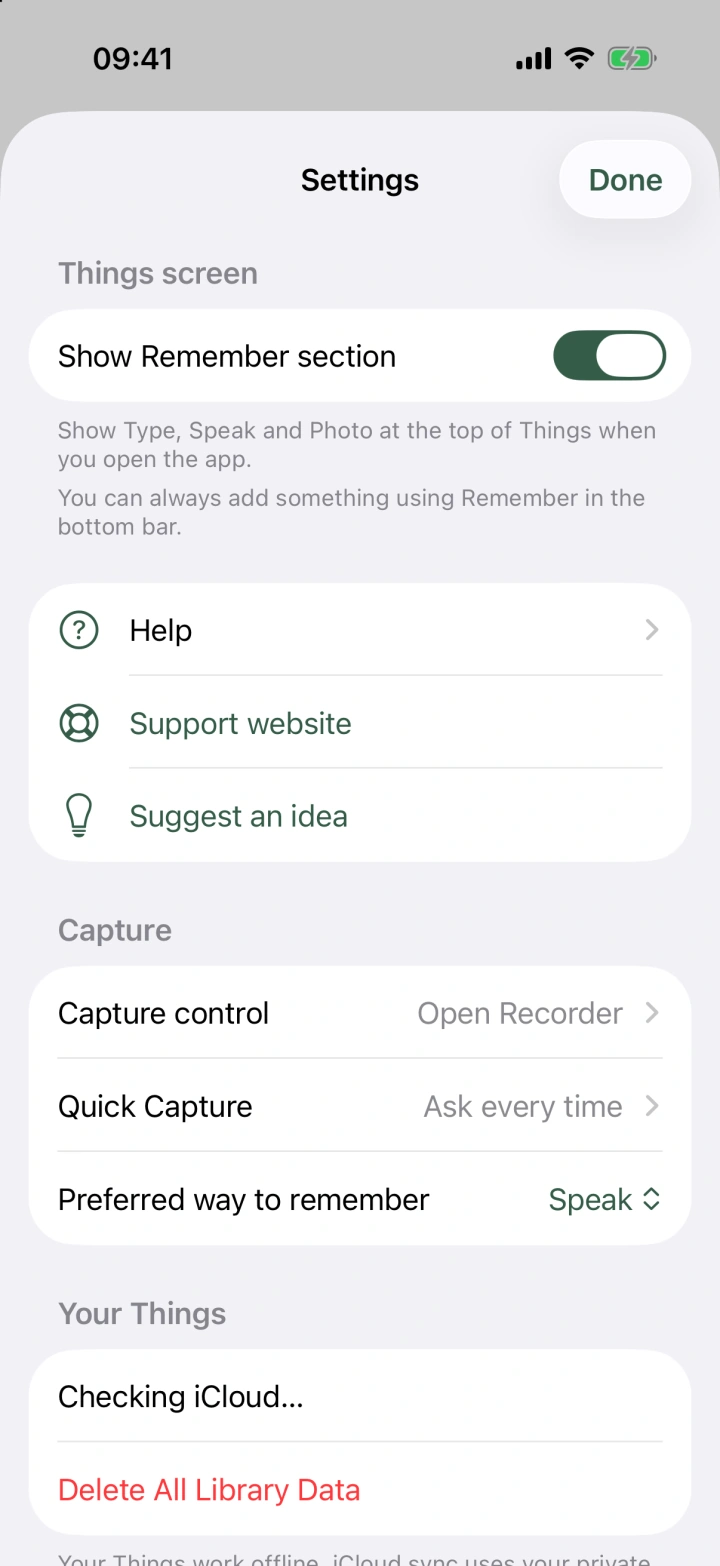
Open Settings in WhereThingy. Under Capture, you can change three separate choices:
- Capture control chooses what the control does from Control Center, the Lock Screen, or the Action Button.
- Quick Capture chooses what the shortcut does from Siri or the Shortcuts app.
- Preferred way to remember marks Type, Speak, or Photo as Preferred in the app's Remember menu.
These choices are separate. For example, Capture control can start voice recording while Quick Capture asks for text.
Set up Capture control.
- Open Settings in WhereThingy.
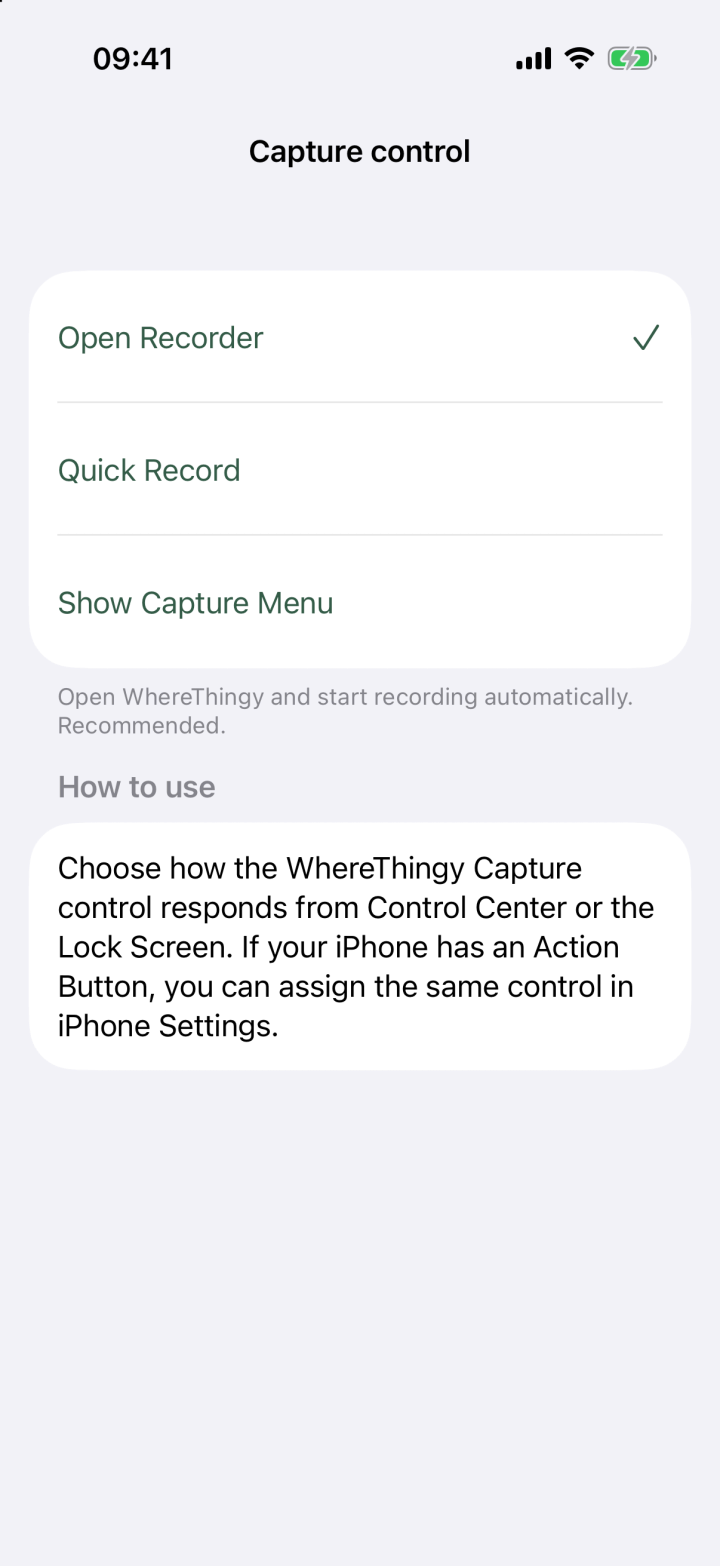
- Under Capture, tap Capture control.
- Choose one of the options below.
- Open Recorder Recommended
Opens WhereThingy and starts listening when microphone access is allowed. Wait for Listening…. Speak, then tap Stop & save. - Quick Record
Records without opening the app. Use the control once to start. Use it again to stop and save. You can also tap Stop & Save on the WhereThingy recording card on your Lock Screen. Unlock if asked. - Show Capture Menu
Opens WhereThingy. Choose Type, Speak, or Photo.
Allow microphone access if asked. English speech files may need to download before recording can start.
Add a control.
Search for WhereThingy when you add a control. Choose Capture control to use the setting above. The separate Tell me control always opens the app's voice screen.
| Where | How to add it |
|---|---|
| Action Button | Open the iPhone Settings app. Choose Action Button, then Controls. Choose a control and search for WhereThingy. This needs an iPhone with an Action Button. |
| Control Center | Open Control Center. Touch and hold an empty space. Tap Add a Control and search for WhereThingy. |
| Lock Screen | Touch and hold the Lock Screen. Tap Customize, then Lock Screen. Remove a bottom control. Tap its empty space and choose a WhereThingy control. |
The steps can vary by iOS version.
Set up Quick Capture.
Quick Capture is a shortcut. Run it in the Shortcuts app, or say “Quick Capture with WhereThingy” to Siri.
- Open Settings in WhereThingy.
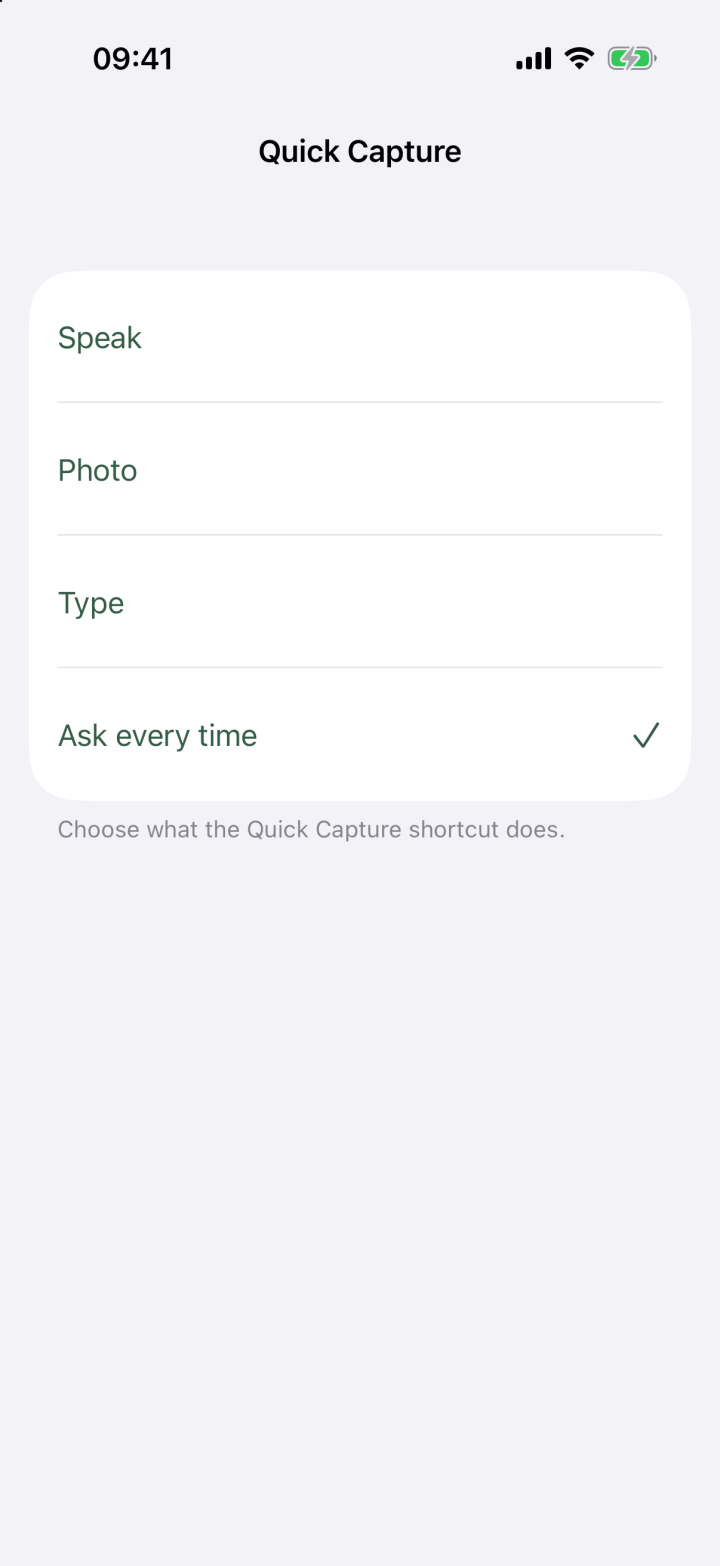
- Under Capture, tap Quick Capture.
- Choose an option below.
- Speak: starts a voice recording without opening the app.
- Photo: opens the app's photo screen.
- Type: asks what you put where. It saves your answer without opening the app.
- Ask every time: shows Speak, Photo, and Type each time. This is the default.
To stop recording, tap Stop & Save on the WhereThingy recording card on your Lock Screen. Unlock if asked.
On iPhones with Dynamic Island, press and hold that area at the top of the screen to show the same controls.
You can also run a shortcut by tapping the back of your iPhone:
- Add Quick Capture to your shortcuts in the Shortcuts app.
- Open the iPhone Settings app.
- Go to Accessibility → Touch → Back Tap.
- Choose a double or triple tap.
- Select your Quick Capture shortcut.
Use the Home Screen.
Touch and hold the WhereThingy icon to show its quick actions. Their names differ from the buttons inside the app:
- Save a Thing opens the Remember menu.
- Tell me opens Speak.
- Show me opens Photo.
- Type it opens Type.
The small Tell me widget also opens Speak. To add it:
- Touch and hold the Home Screen.
- Tap Edit, then Add Widget.
- Search for WhereThingy.
- Add the Tell me widget.
Which should I use?
| If you want to… | Try |
|---|---|
| Start and stop voice recording with the same control | Capture control with Quick Record |
| Open the app and start speaking | Capture control with Open Recorder |
| Choose how to save each time | Quick Capture with Ask every time |
| Save while using Siri | Say “Save a Thing in WhereThingy” |
| Open the camera from the app icon | Touch and hold the icon, then tap Show me |