 WhereThingy
Guide · Moving & fixing
Update a saved location.
Save a new location when you move something. Check the result, choose between matching Things, or fix a mistake.
Moved it?
You can save another sentence with the same name and a new location. For example: “My passport is in the travel bag.”
WhereThingy updates a Thing automatically when its name is the only match. If another Thing also matches, the app asks you to choose. Previous locations stay in History.
To choose the Thing yourself:
- Open Things.
- Tap the Thing you moved.
- Enter the new place under Update location.
- Tap Save location.
You can also say “Move a Thing in WhereThingy” to Siri.
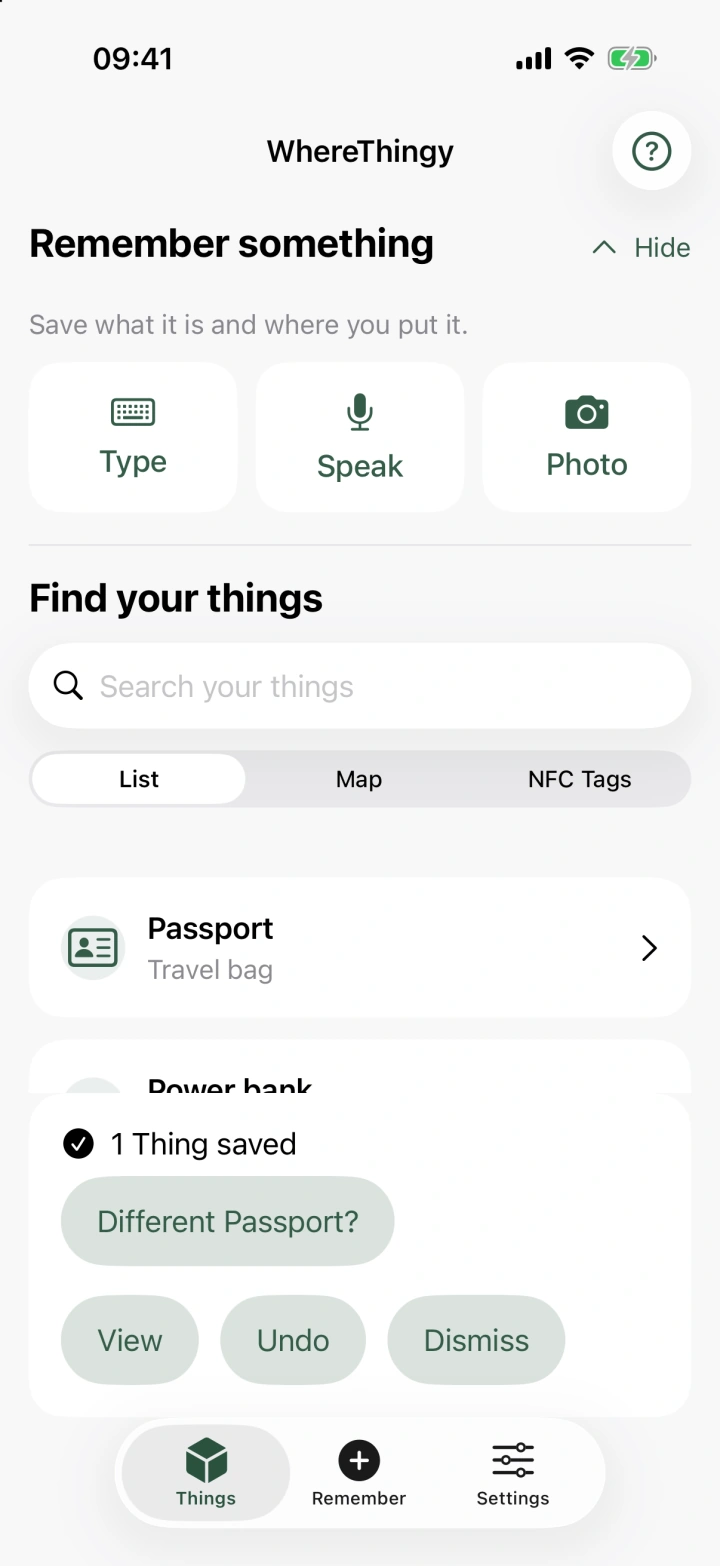
Did you mean a different Thing?
An automatic update adds a button such as Different Passport? to the save summary. Use it if you meant another Thing with the same name.
- Tap Different Passport?.
- Check the new Thing in your list.
The app creates a separate Thing from that entry. It removes that update from the original Thing. Later updates to the original Thing stay in place.
You can also find this button under History in the original Thing. Creating a separate Thing counts toward the free limit of 10 Things.
Which one?
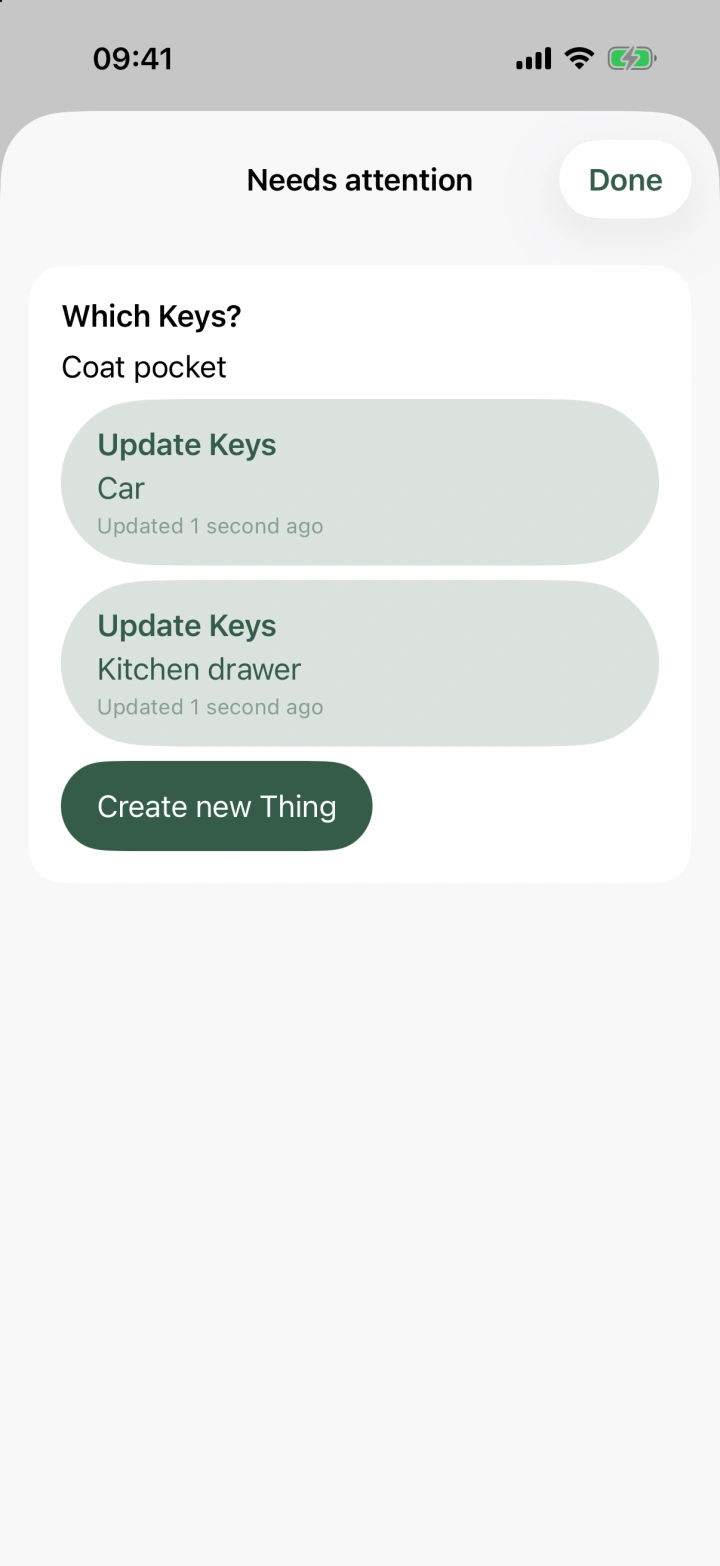
Two Things can have the same name. A description can also match another name saved for a Thing. When the match needs your choice, the app keeps the entry under Needs attention.
- Open Things.
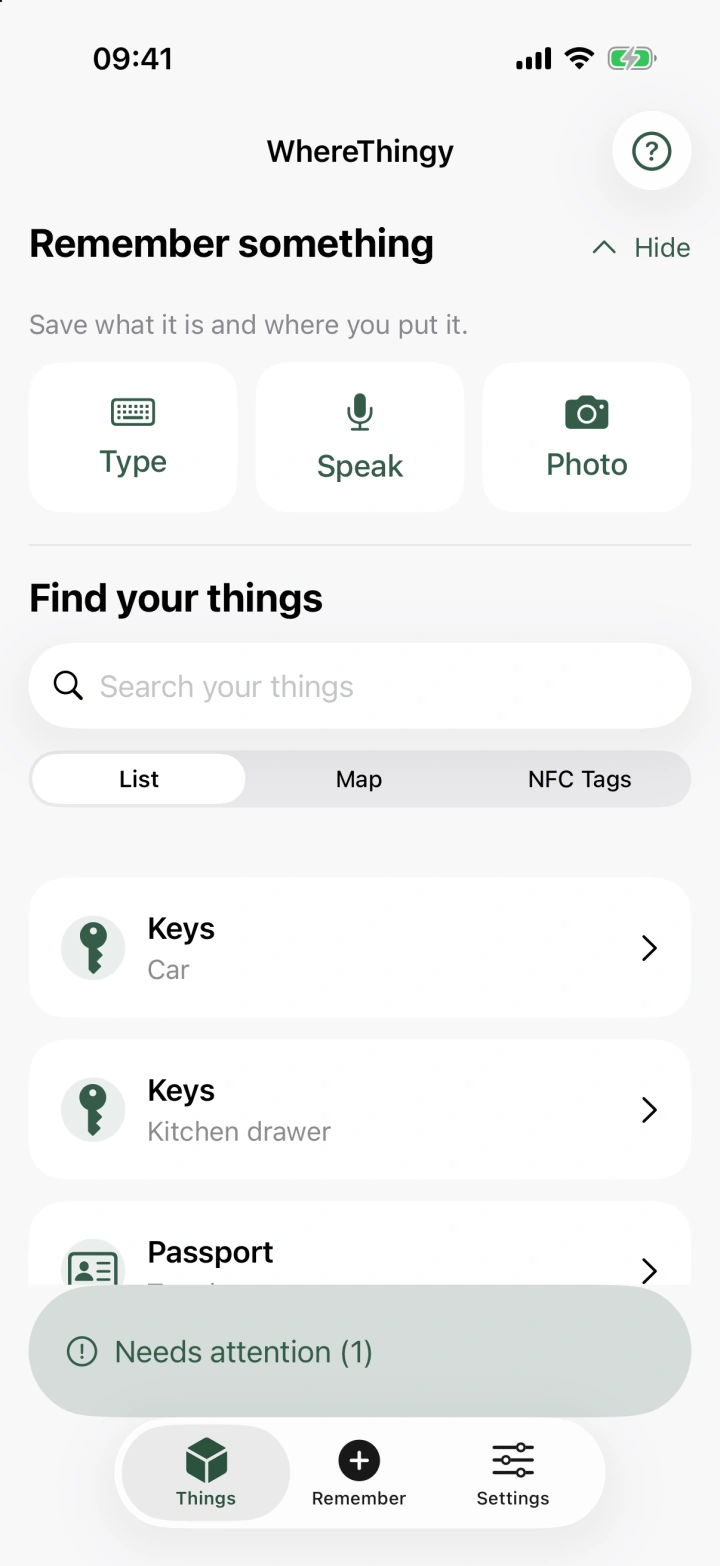
- Tap Needs attention.
- Check the current location beside each choice.
- Tap the Thing you meant. Or tap Create new Thing to save a separate one.
Finish a saved entry.
An entry can need more details if the app cannot identify a Thing. It can also wait when you reach 10 Things. Open Needs attention on Things. Look for Add a name to finish saving.
- Tap Finish saving.
- Enter a Thing name. Add a location if you know it.
- If Which Thing? appears, choose an existing Thing or Create new Thing.
- Tap Save Thing.
Other buttons appear when they apply:
- Retry identification tries to identify the saved words or opens the saved photo for review. Check the result.
- Unlock Unlimited Things opens the purchase screen when you reach the free limit. After purchase, check whether the entry needs more details.
- Delete saved entry removes the entry. Tap it again in the confirmation to delete its saved words and photos.
Fix a mistake.
| If… | Do this |
|---|---|
| You just saved the wrong details | Tap Undo on the save summary. This removes that entry and the changes it made. |
| The name is wrong | Open the Thing. Tap …, then Rename. Enter the name and tap Save name. |
| The recorded location was wrong | Say “Correct a Thing in WhereThingy” to Siri. Choose the Thing and give the correct place. History records a correction. |
| You want to remove a Thing | Open it. Tap …, then Delete. Tap Delete Thing to confirm. This cannot be undone. |