 WhereThingy
Guide · Getting started
Save one thing. Find it again.
WhereThingy saves what something is and where you put it. The app calls each saved item a Thing.
Start here.
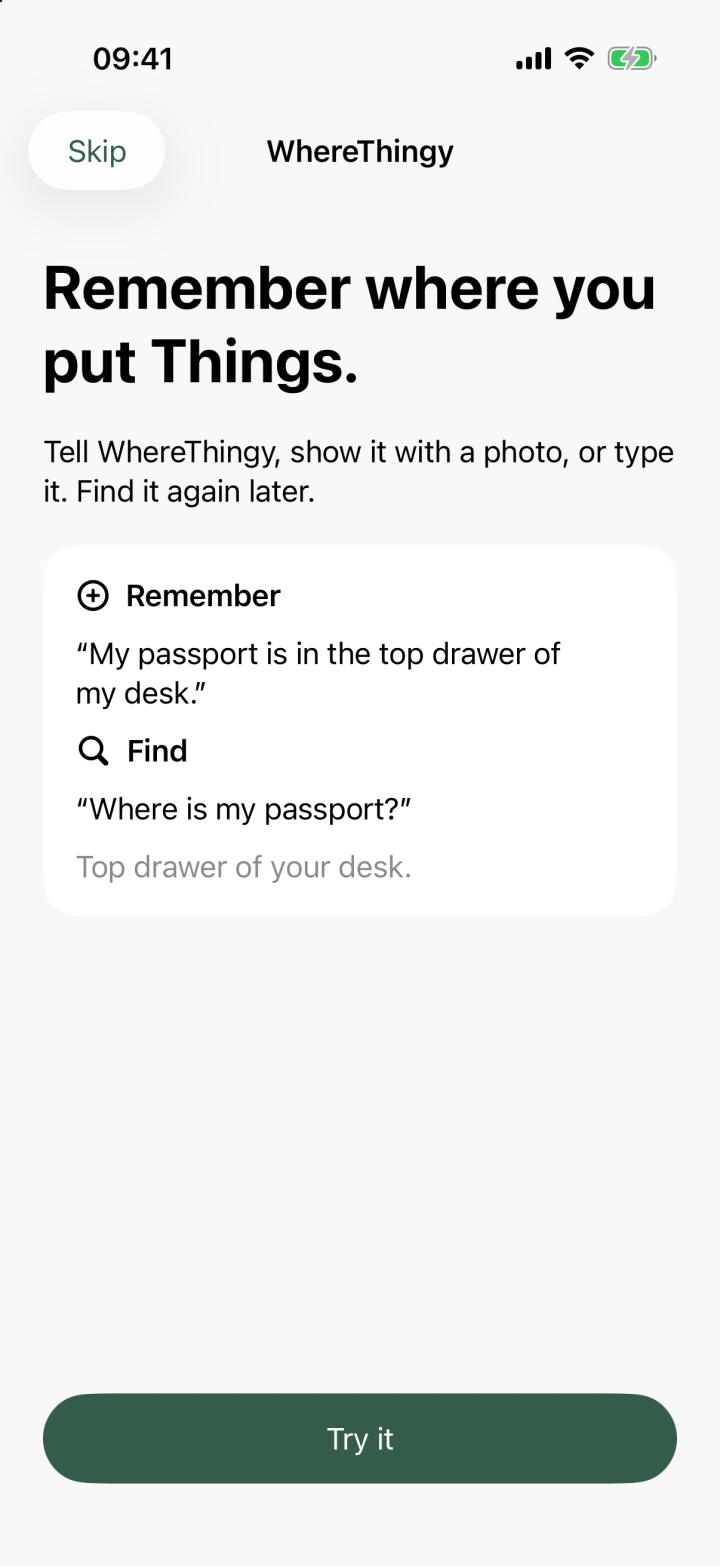
When you open the app for the first time, you’ll see a short introduction. It shows you how to save an item and find it again.
- Tap Try it.
- Choose whether to turn on Share Anonymous Analytics. It is optional and off by default. Tap Continue.
- Choose Type, Speak, or Photo. Speak appears when speech is available. Save something and its location.
- Check the saved details. If asked, add a name or choose which Thing to update.
- Tap Find it now.
- Enter the Thing's name. Tap Find my Thing.
- Open the result to check its location.
This saves a real Thing in your collection. Analytics never include your Things, searches, photos, or recordings.
On Now find it, tap Open Help for the app's guides. Read guides online opens this website. You can return to your search.
Tap Skip to leave the introduction. On the first screen, Skip also takes you through the optional analytics choice. To replay it, open Settings → Help → Show introduction again.
Your Things.
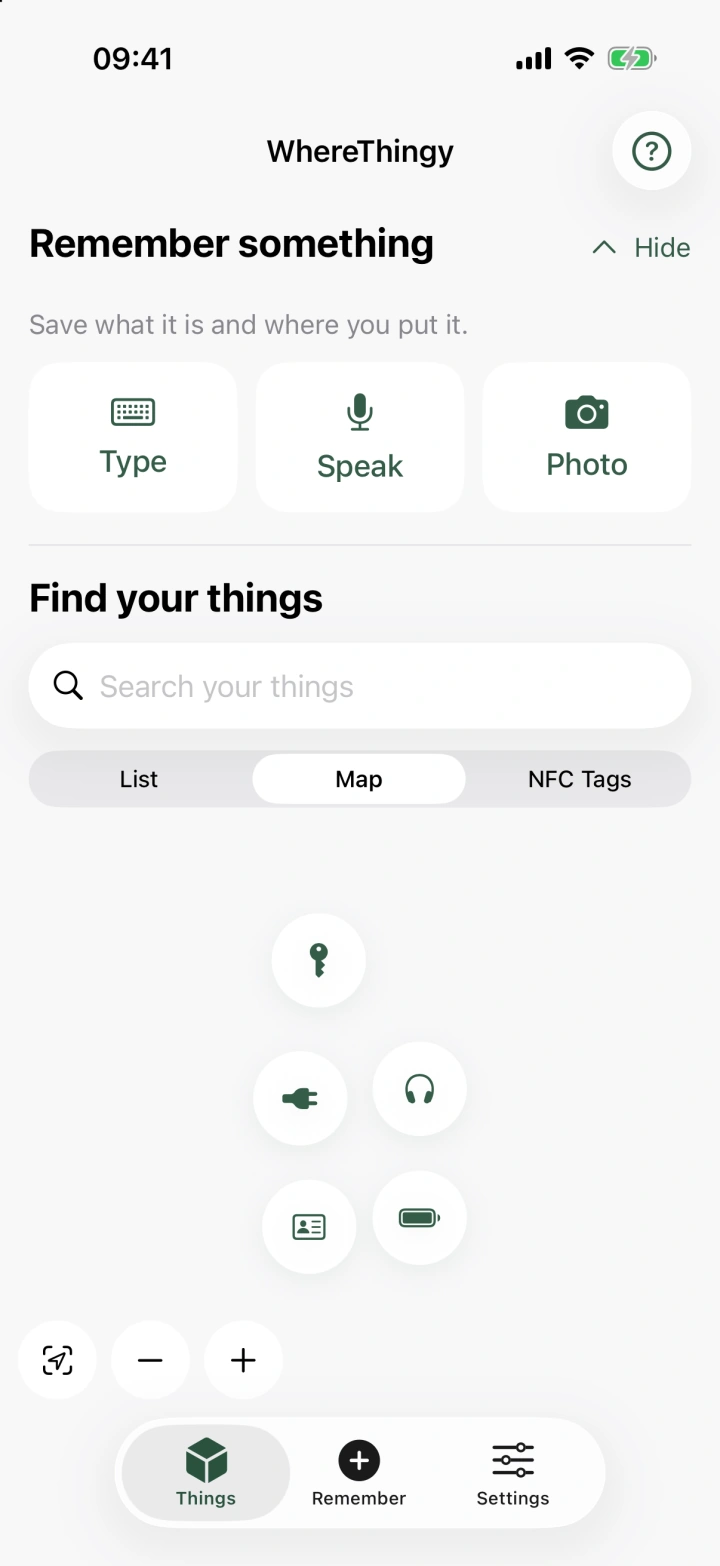
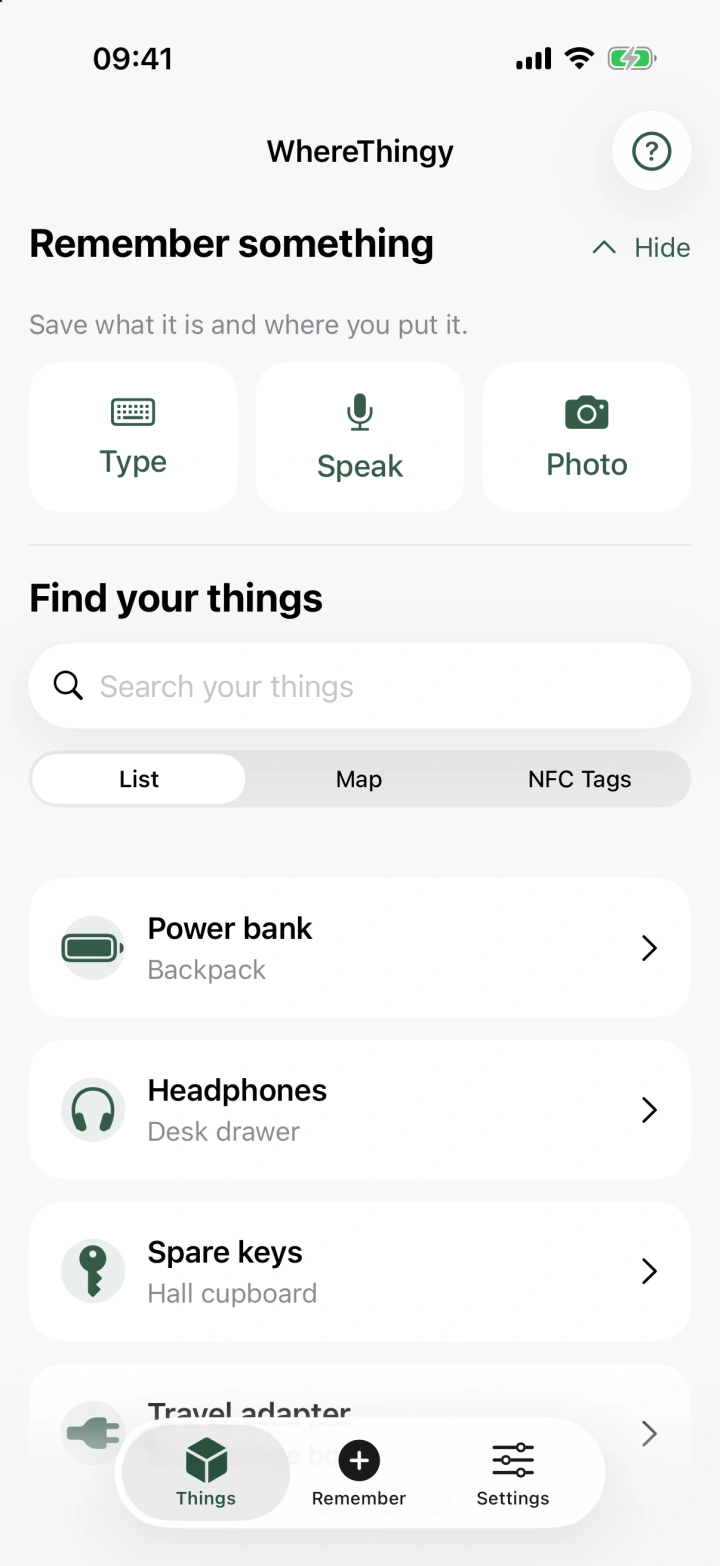
Open Things in the bottom bar to see your saved items and their latest saved locations.
- Remember something: tap Type, Speak, or Photo in the top section.
- Remember: tap this in the bottom bar to choose from all three methods. It works when the top section is hidden.
- Search your things: enter a name or description to find a saved Thing.
To choose your preferred method, open Settings → Preferred way to remember. It gets a Preferred label in the Remember menu.
Save a Thing.
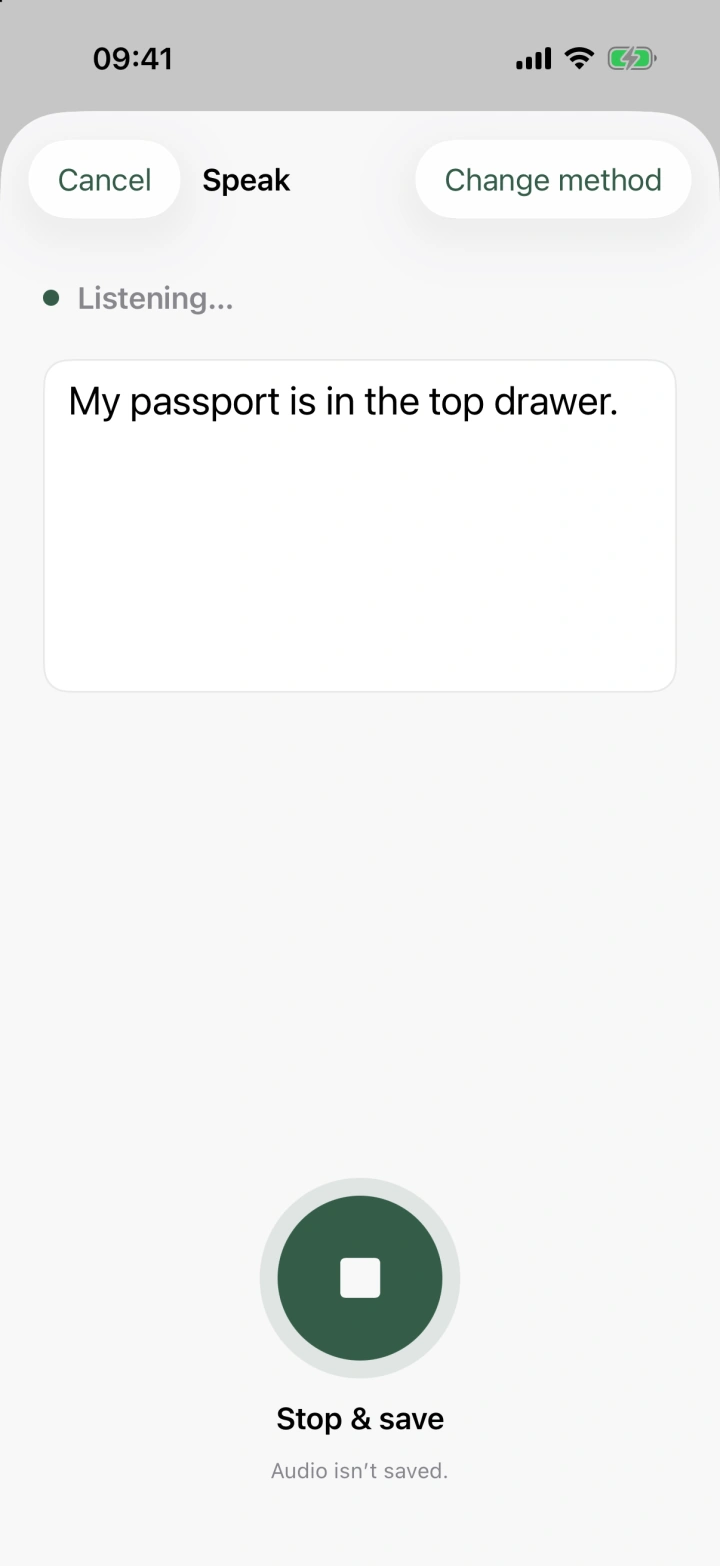
Use Speak to say what you put where.
- Tap Speak on Things. You can also tap Remember, then Speak.
- Allow microphone access if asked. Wait for Listening….
- Say the name and location.
- Tap Stop & save.
“My passport is in the top drawer.”
Your words appear as text. The app saves the text, but it does not save the audio.
If the app needs more details, open Needs attention on Things. Add a name or choose which Thing to update.
WhereThingy supports English for now. Apple's speech files may need to download before Speak can start. Use Type if speech is unavailable.
Check the save.
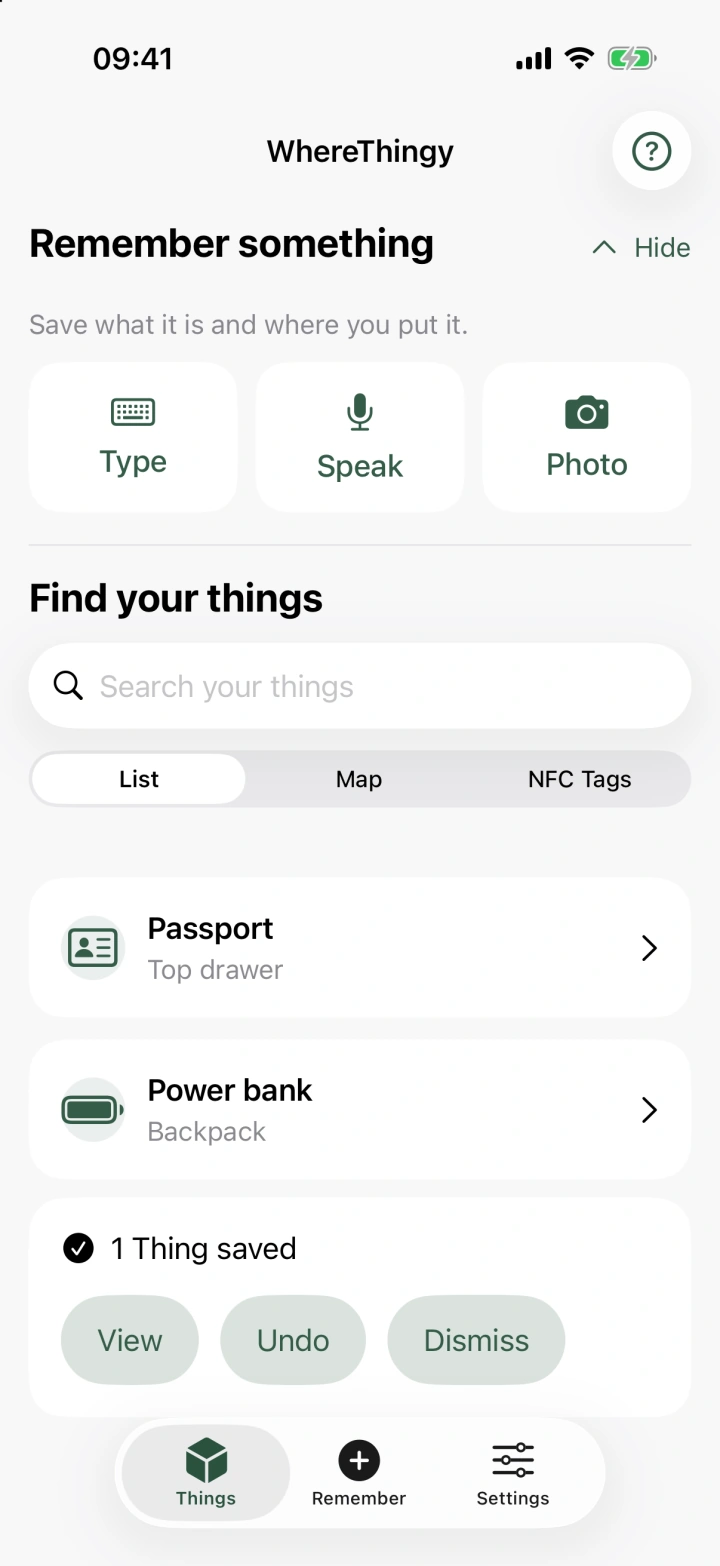
A message on Things shows the result of your save. Check that the name and location are right.
- View opens a saved Thing.
- Undo reverses that save.
- Dismiss hides the message.
The app can update an existing Thing when the name matches. If it asks which Thing you mean, choose one or tap Create new Thing.
For a direct update, open the Thing and use Update location.
Find it again.
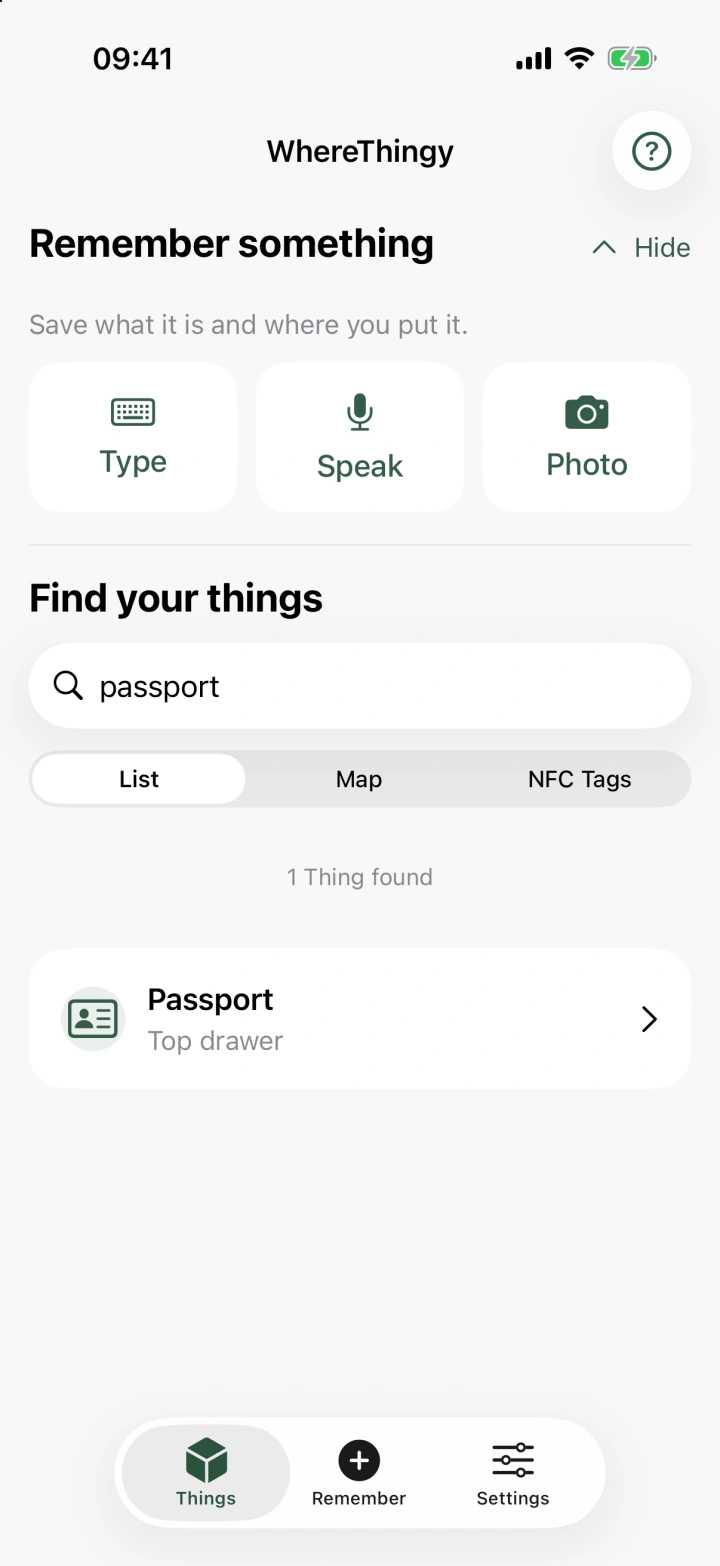
- Open Things.
- Tap Search your things.
- Enter the Thing's name, such as passport.
- Tap the matching result.
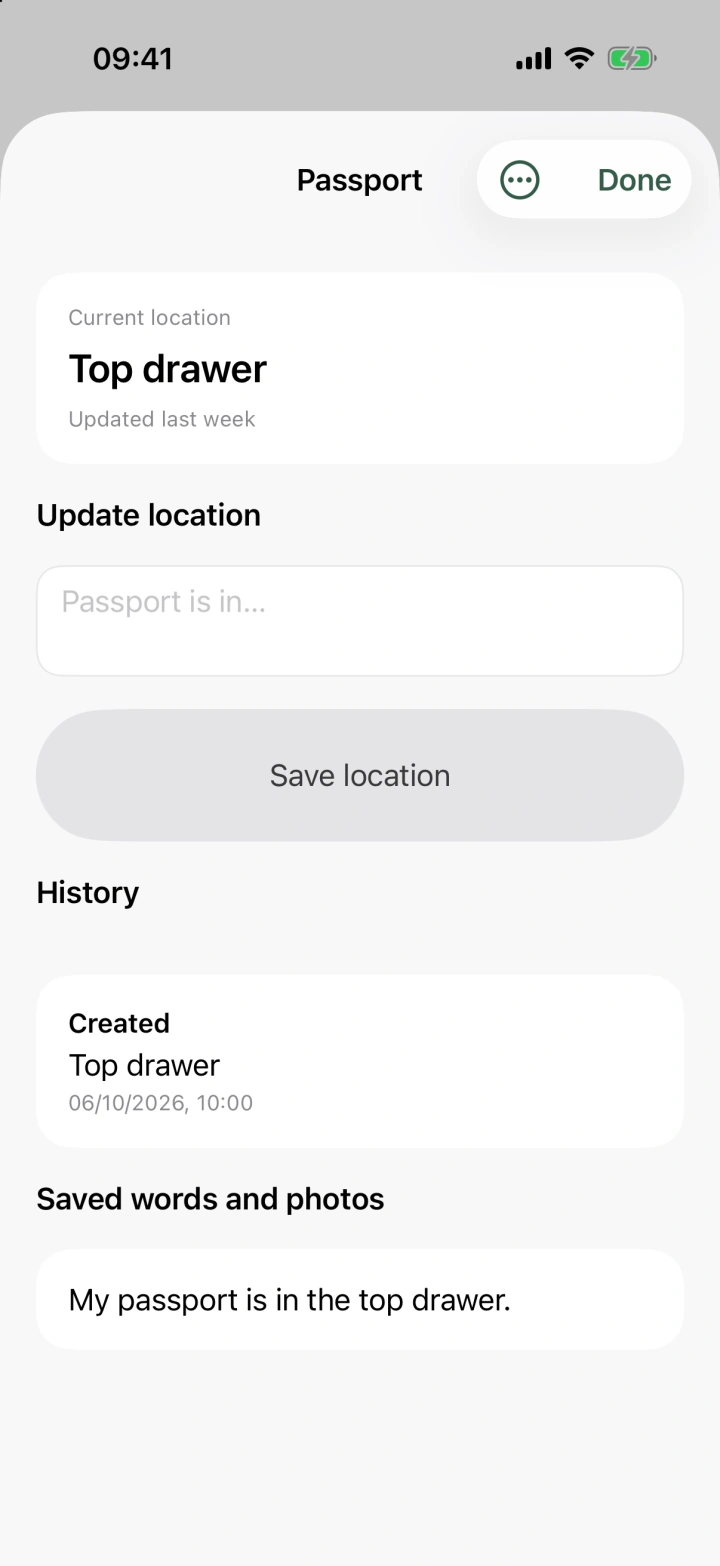
Current location shows the latest location you saved. WhereThingy does not track the item's live position.
Scroll down to see its history and saved words or photos.
List or Map.
Use the control below search to choose how you browse your Things.
- List shows your Things in rows.
- Map shows each Thing as a bubble. Similar things appear in groups.
- NFC Tags shows tags linked to your Things. Tags are small stickers or cards you can scan with your iPhone.
On Map, drag to move around. Pinch to zoom. Tap a bubble to open the Thing.
Map shows your saved Things, not a street map. Setting up and editing NFC tags needs a one-time unlock. You can still scan and view saved tags.