 WhereThingy
Guide · Three ways to remember
Type, speak, or take a photo.
Save the name of an item and where you put it. Choose the method that suits you.
Choose a method.
- Open Things.
- Tap Type, Speak, or Photo under Remember something.
If that section is hidden, tap Remember in the bottom bar. It always offers all three methods.
To switch while entering something, tap Change method. The app asks before discarding unsaved words or photos.
Choose a preferred method under Settings → Preferred way to remember. That method gets a Preferred label when you tap Remember.
Tap Hide beside Remember something to hide the top section for this visit. Tap Undo to bring it back.
To keep it hidden, open Settings → Things screen. Turn off Show Remember section. Turn it on to bring the section back. If it is hidden only for this visit, tap Show now in Settings.
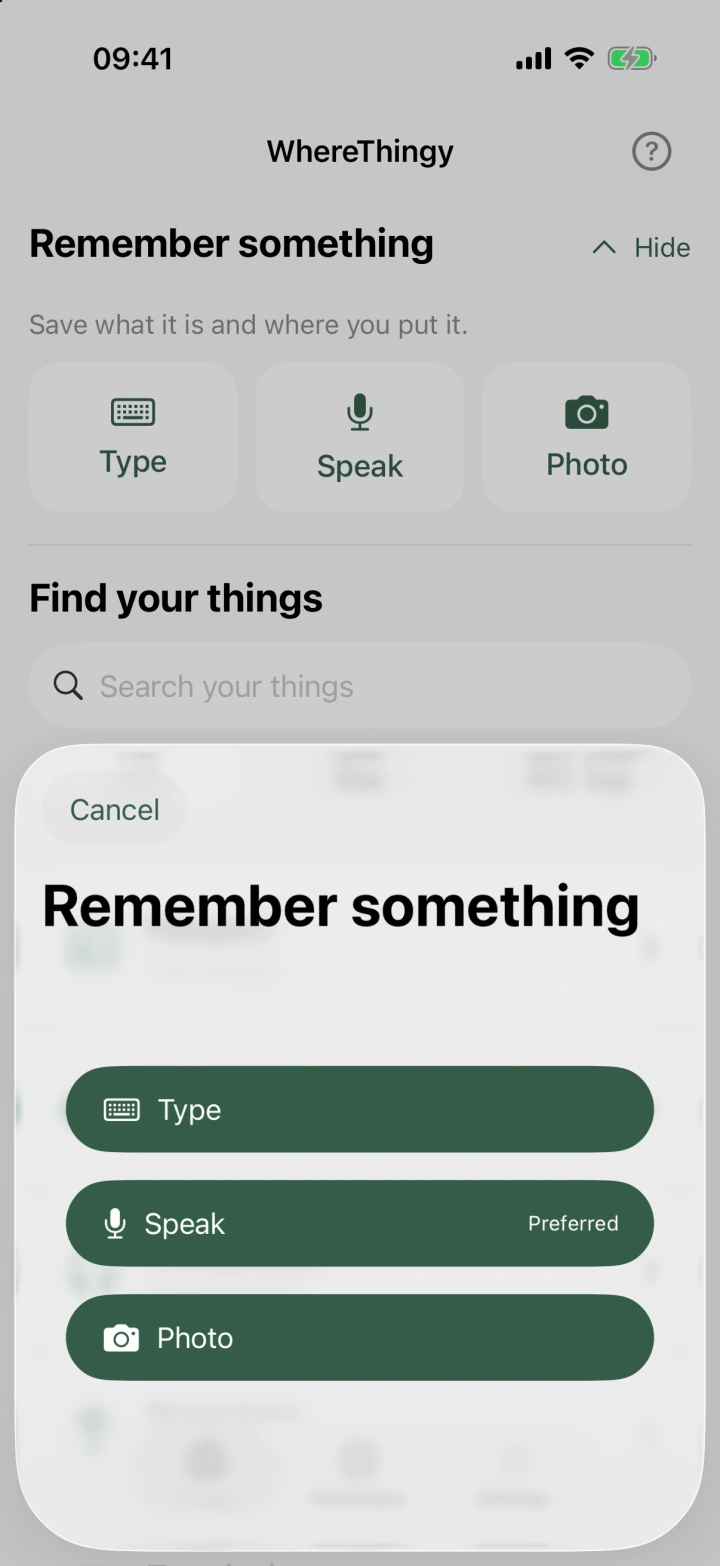
Speak.
Speak starts listening when you open it.
- Tap Speak on Things, or choose it from Remember.
- Allow microphone access if asked. Wait for Listening….
- Say the item's name and where you put it.
- Tap Stop & save.
“I put the spare charger in the left kitchen drawer.”
Your words appear as text. The app saves this text. It does not save the audio.
If recording pauses, you can edit the text. Tap Resume recording to continue, or Save Thing to save.
Add details yourself lets you enter the name and location when recording has stopped.
Apple's speech files may need to download first. Use Type if speech is unavailable. Check the saved details after saving.
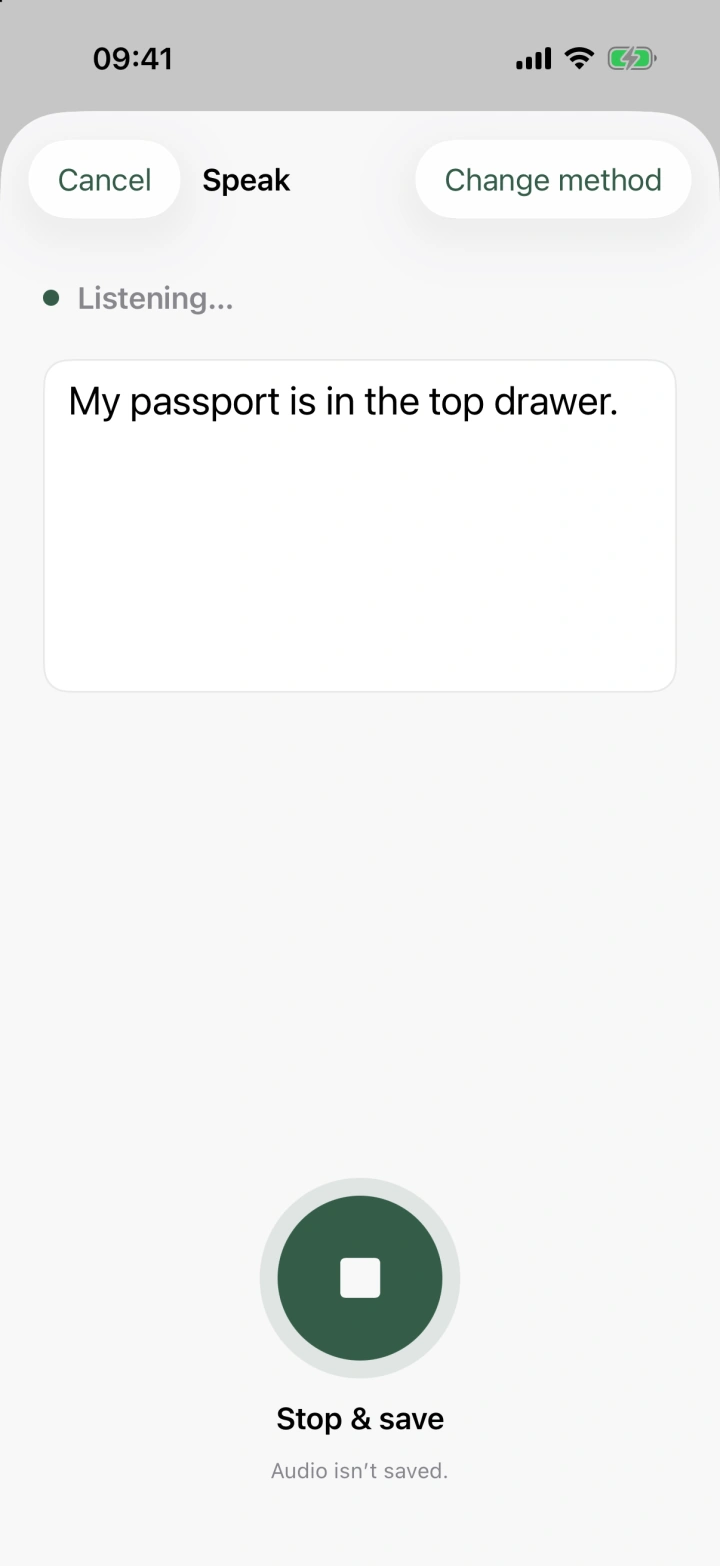
Photo.
Save a photo with one or more Things.
- Tap Photo on Things, or choose it from Remember.
- Take a photo with the round camera button. Or tap Choose photos to open your photo library.
- If names appear under Choose Things to remember, check them. Edit names and deselect anything you do not want.
- To add a name, enter it under Add a Thing yourself. Tap Add.
- Under Where are these Things?, enter a location if you know it. This applies to all selected Things.
- Tap Save 1 Thing. The button shows a larger number if you select more Things.
If a name matches a saved Thing, check Remember as. Choose the saved Thing or Create separate Thing.
To add names later, tap Save photo for later. Open Needs attention on Things to finish.
Photo suggestions need iOS 27 and Apple Intelligence on a supported iPhone. If suggestions are unavailable, add names yourself. The app checks photos on your device. Photos are saved with the Things you choose.
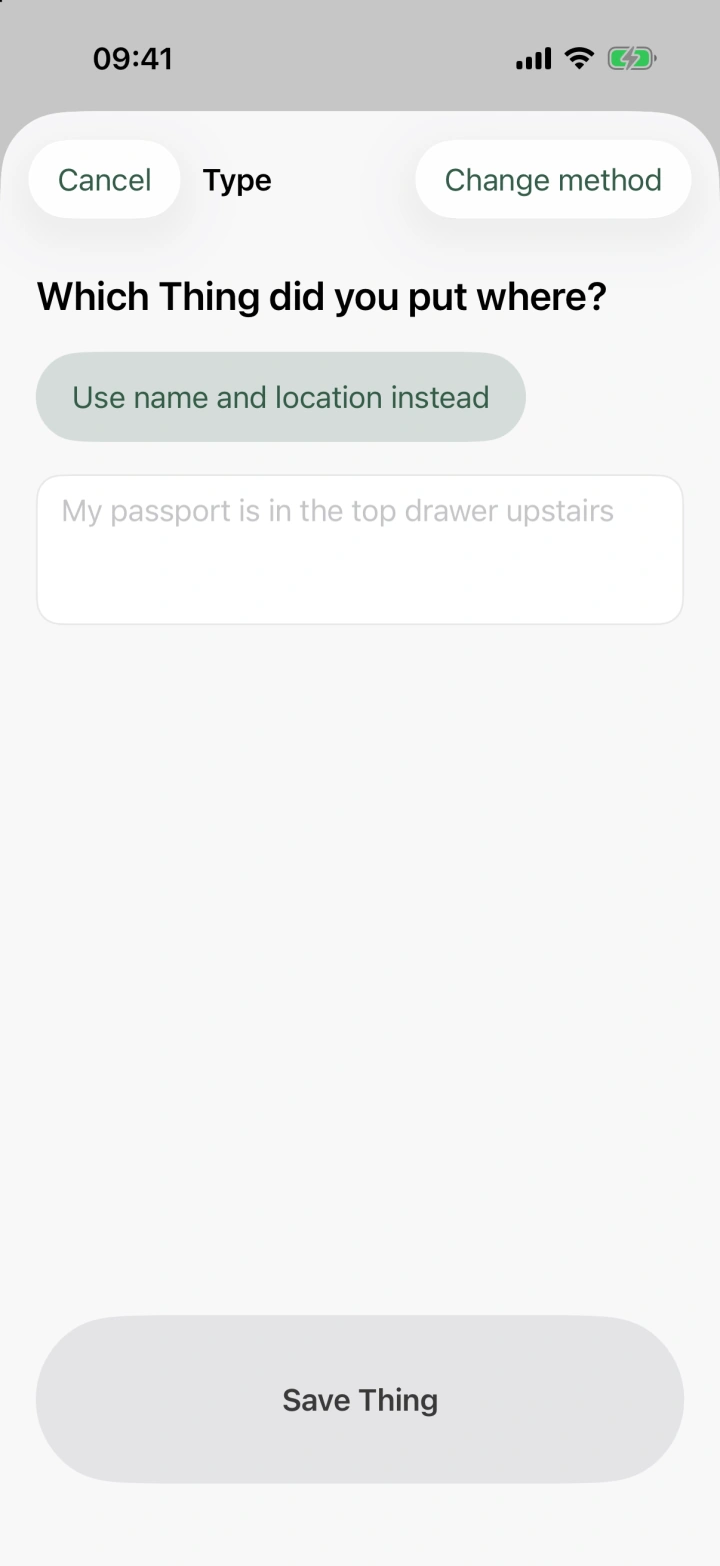
Type.
- Tap Type on Things, or choose it from Remember.
- Enter a sentence with the item's name and location.
- Tap Save Thing.
“My passport is in the top drawer upstairs.”
To use separate fields:
- Tap Use name and location instead.
- Enter Thing name and Location (optional).
- Tap Save Thing.
Separate fields work without Apple Intelligence. You can leave the location empty if you do not know it.
Apple Intelligence helps with more complex descriptions. Simple sentences and separate fields can work without it. Open Needs attention if the app needs more details.
Make your Things easy to find.
- Use a name you will search for. For example, use “passport” rather than “travel documents”.
- Give a clear location. “Top drawer of the bedroom desk” is more useful than “drawer”.
- Give similar items different names. For example, use “blue charger” and “work laptop charger”.
- Check the result. Open the Thing after saving. Use Update location if the place needs correcting.
Speak or type in English for now. You can also save with Siri or Shortcuts.