 WhereThingy
Guide · Finding things
Where did I put it?
Search for a Thing to see the latest location you saved. WhereThingy shows what you recorded, not the item's live position.
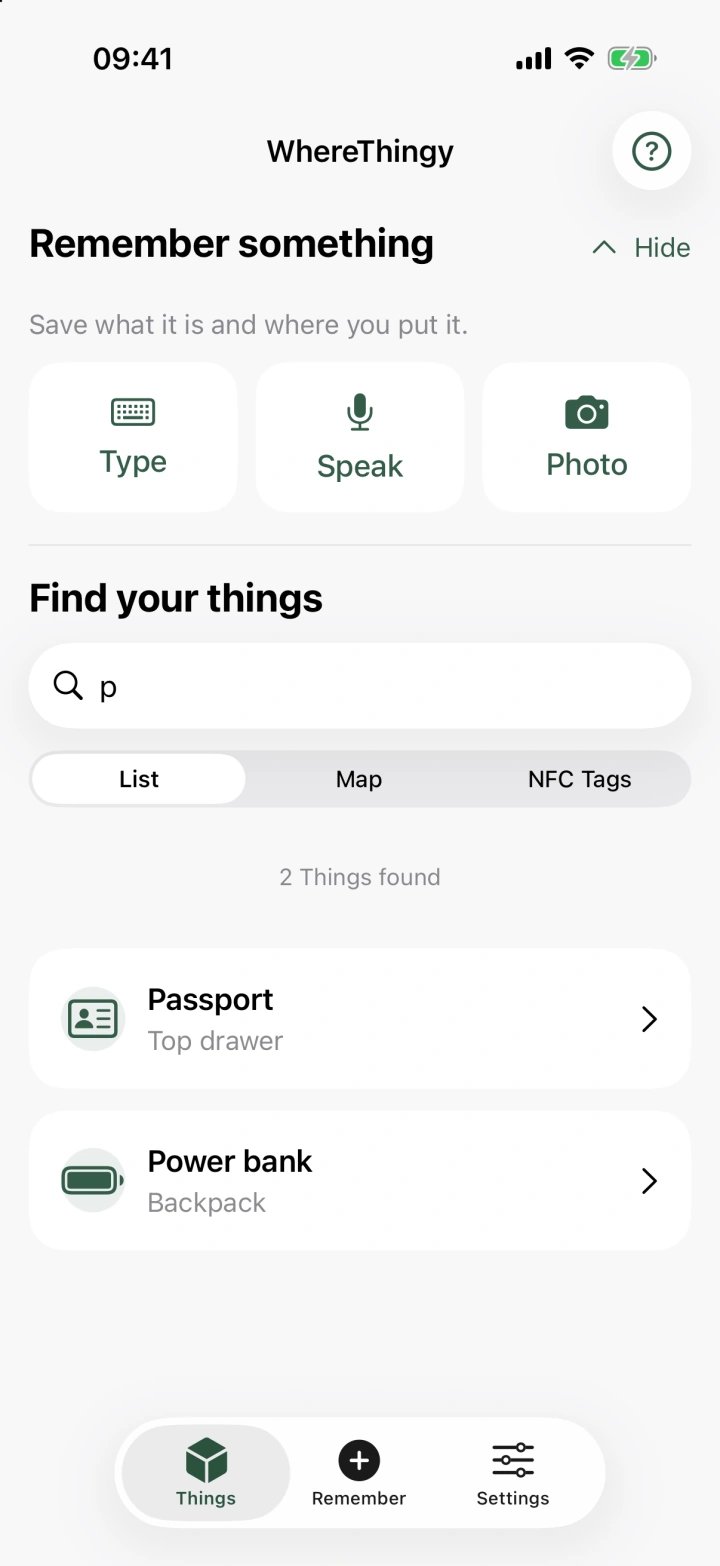
Search.
- Open Things in the bottom bar.
- Tap Search your things.
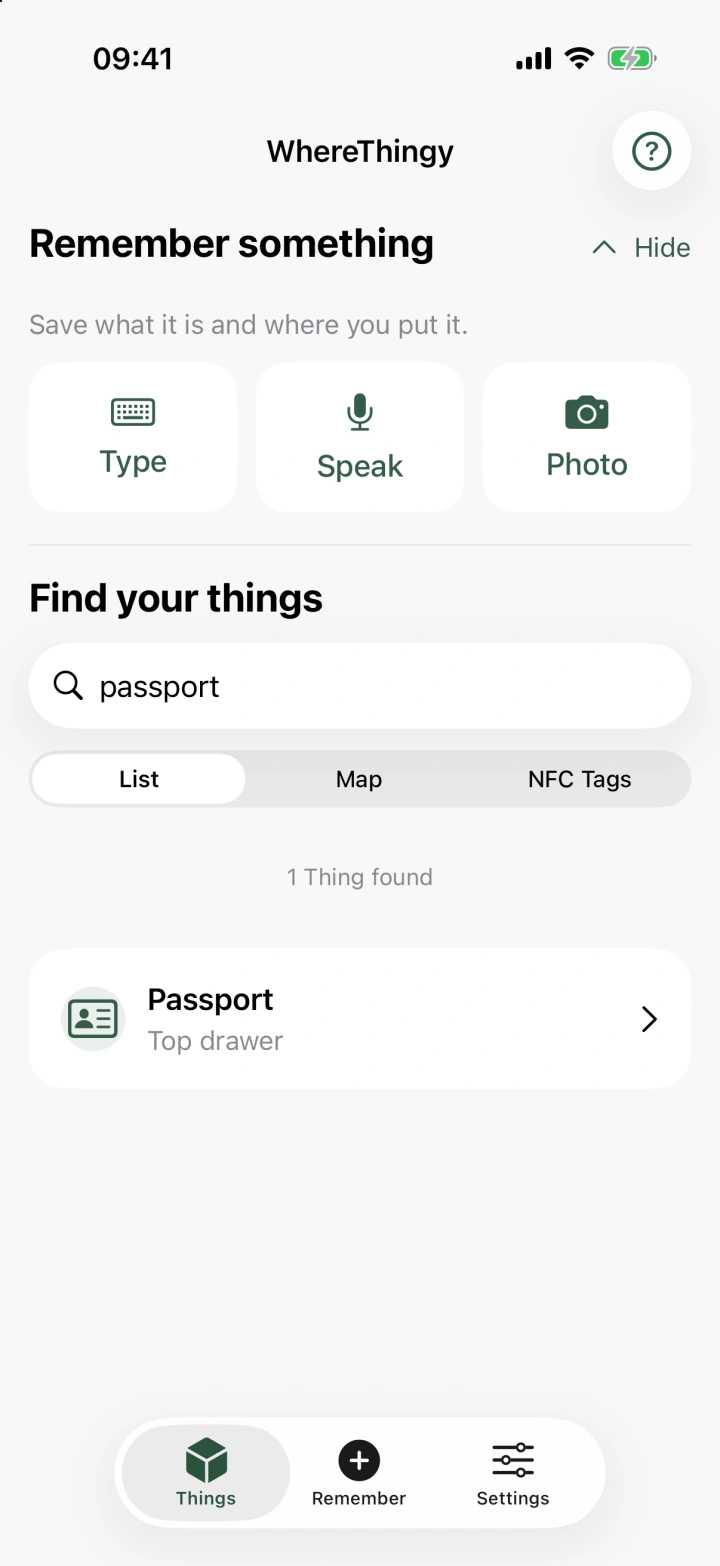
- Enter a name, such as passport. Results update as you type.
- Tap a result to see its saved location.
You can also enter another saved name, a description, or part of a location.
Matches in names appear before matches in locations. If no words match, the app can use Apple Intelligence to search by meaning.
If nothing appears, try the item's name or part of its saved location. Check Needs attention if you still need to add its details.
A Thing's details.
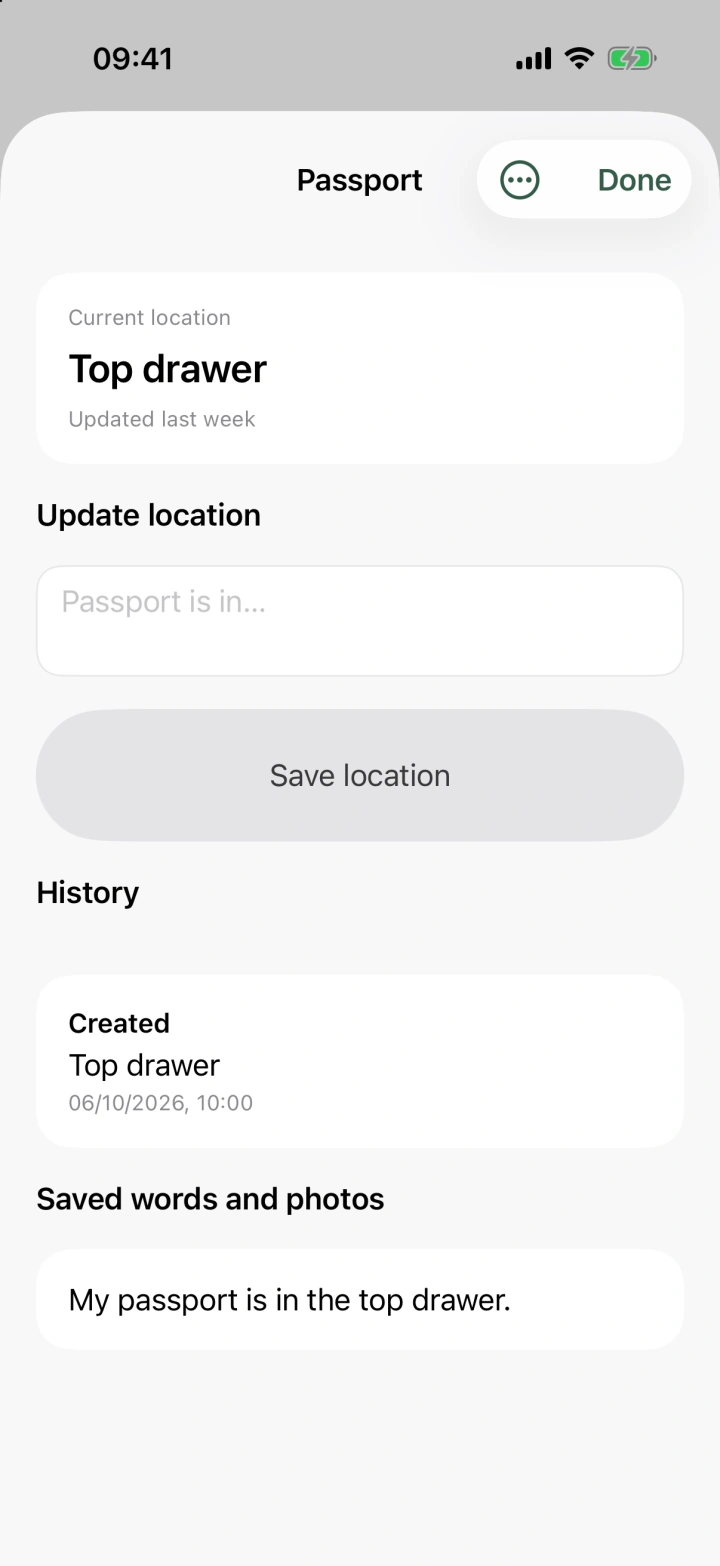
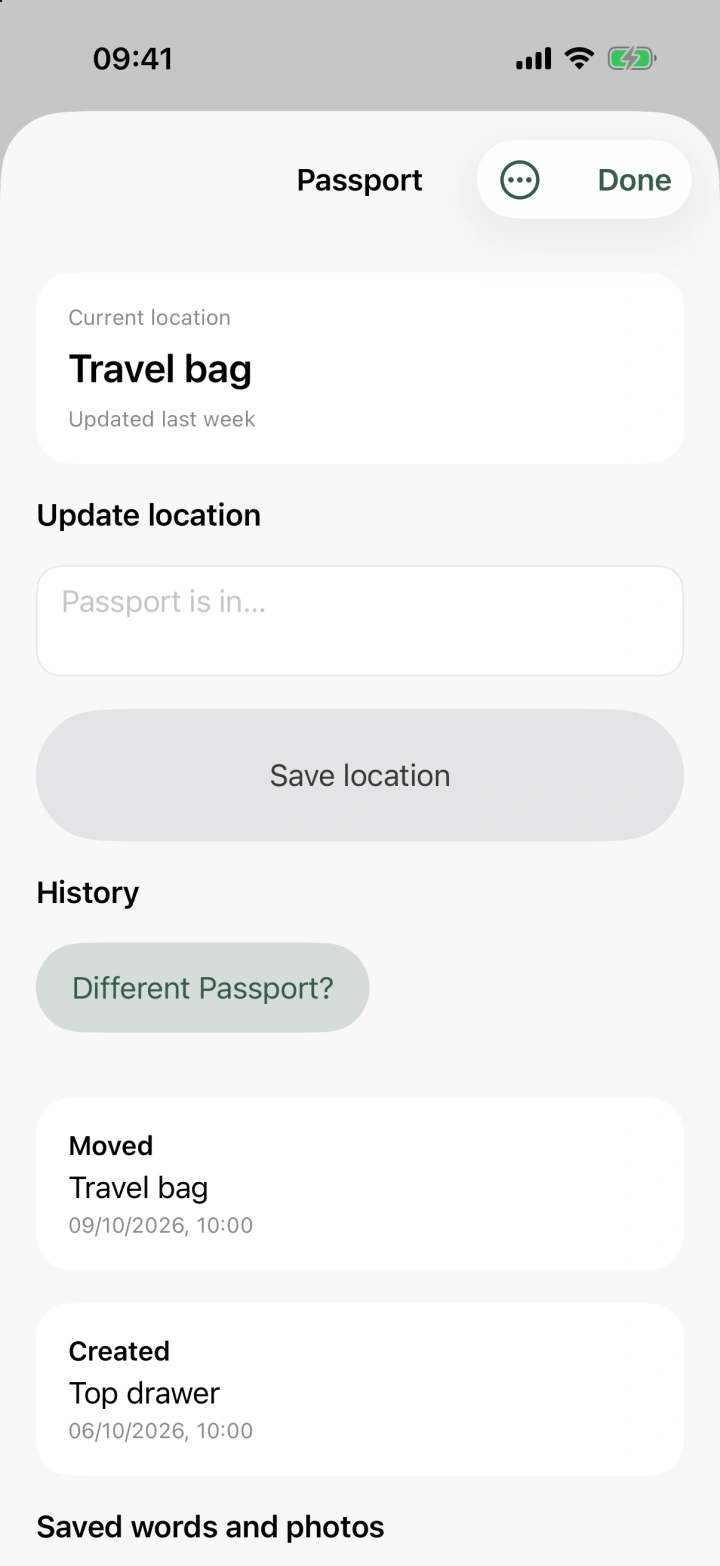
Open a Thing to see Current location and when you last updated it.
To change the saved location:
- Tap the field under Update location.
- Enter the new place, such as travel bag.
- Tap Save location.
Use the three-dot Thing actions menu to rename or delete the Thing. The app asks before deleting it.
If the Thing has NFC tags, they appear under Linked tags. Tap a tag to open it.
History.
Scroll down in a Thing's details to see History. It lists your saved changes, with the newest first.
Each entry shows the date and the location you recorded, or a name correction. Use it to check an earlier location.
Saved words and photos shows the text and photos you saved with the Thing. Audio is not saved.
Map.
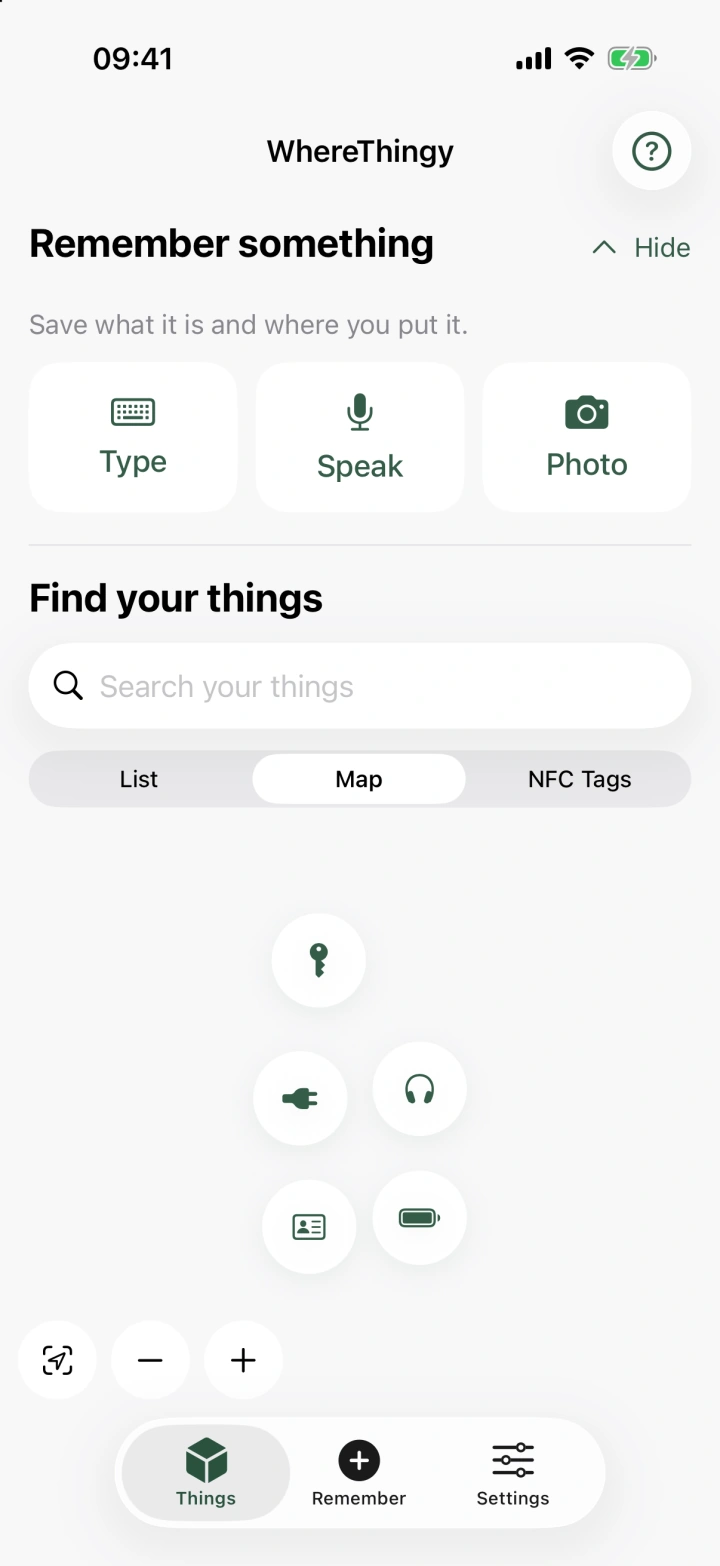
Map gives you another way to browse your saved Things. Each Thing appears as a bubble, grouped with similar items.
- Open Things.
- Tap Map below the search field.
- Drag to move around. Pinch to zoom, or use the plus and minus buttons.
- Tap a bubble to open the Thing.
Tap Recenter to see the overview again. Search filters the bubbles to matching Things.
Map groups items by kind. It is not a street map. The app remembers your choice of List, Map, or NFC Tags.
Other ways to find.
- Siri: say “Where is my passport in WhereThingy?” Use the name of a saved Thing.
- Spotlight: swipe down on the Home Screen. Enter the Thing's name.
- NFC tags: scan a tag on a box to open the Things linked to that tag in your library.
See Siri, Shortcuts & Spotlight for setup and more actions.